Guide
How to run a tech conference on EVOCA
Build the event in Conferences, publish the public schedule, then run live reactions and Q&A per talk. Screenshots follow the organizer path for multi-day, multi-track events.
Last verified: September 2026
For why this fits a multi-track floor, see the tech conference use case. Speakers presenting a single room can follow how to run a talk.
Steps
1.Open Conferences
Go to Dashboard → Conferences to see existing events or start a new one.
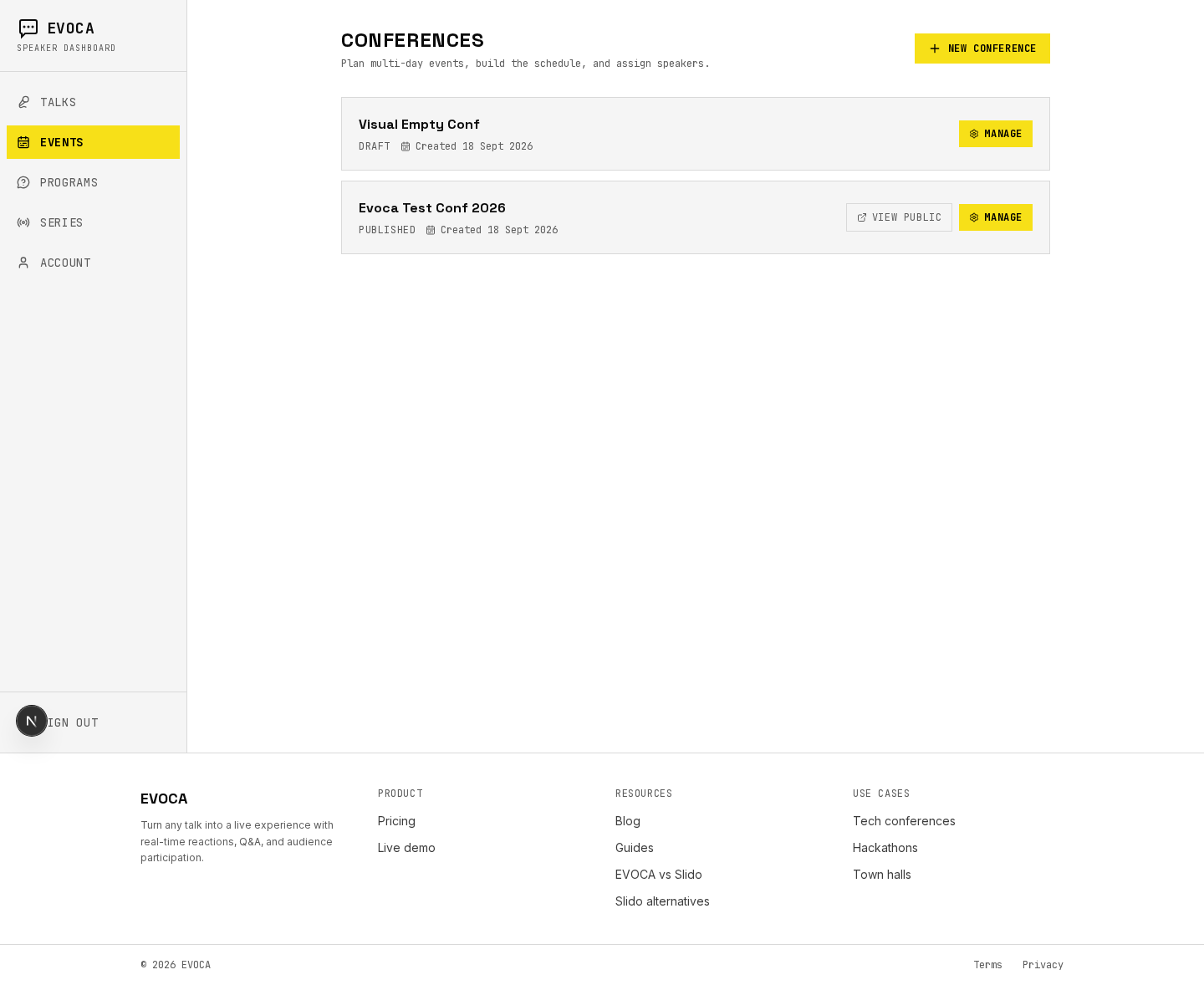
Conferences / events list. 2.Create the conference
Click New Conference. Enter a Conference name and click Create. You land in the conference manager.
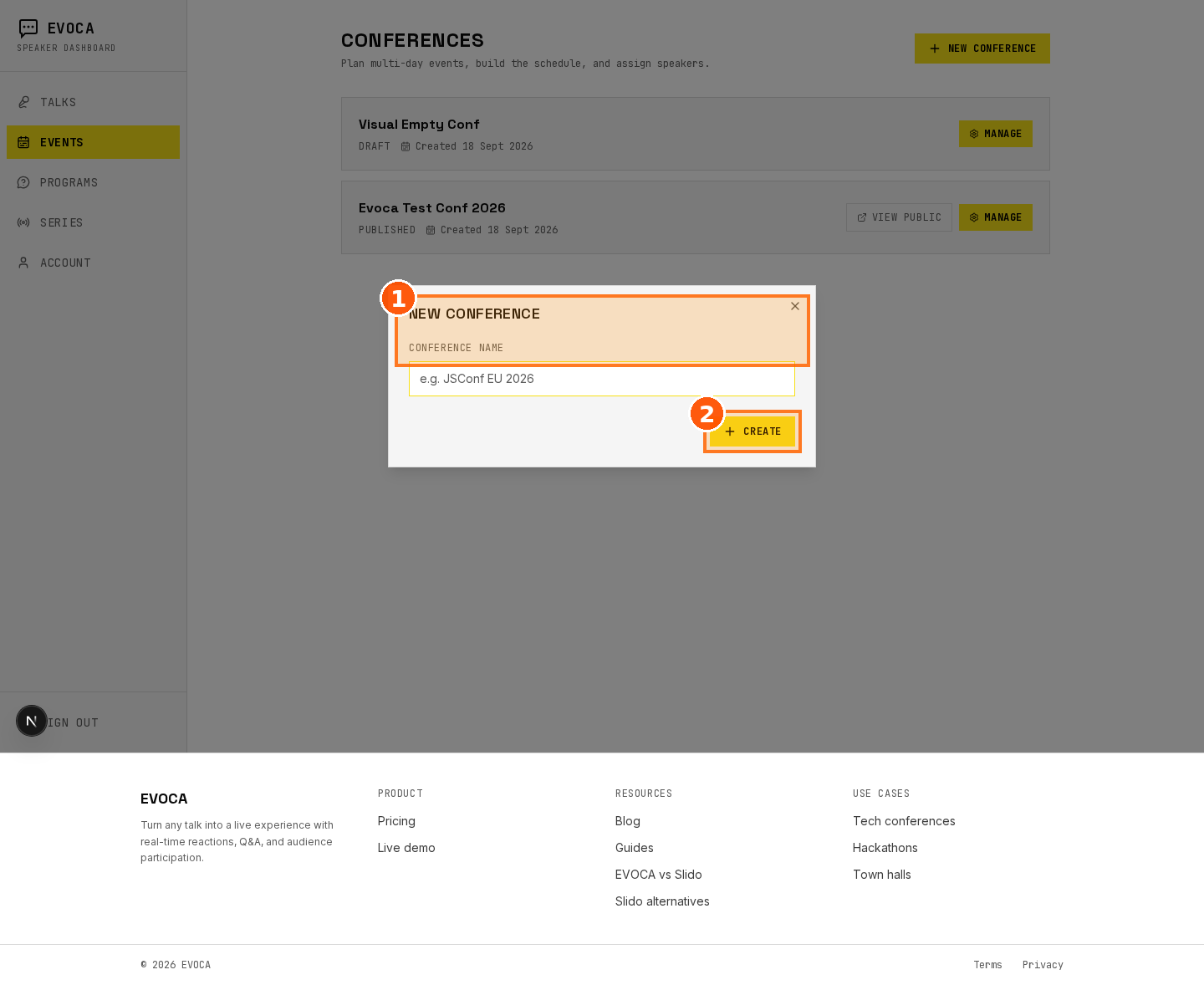
New Conference modal — name the event and Create. 3.Build the schedule
Add days for your event window. The schedule view shows the day timeline your public agenda will follow.
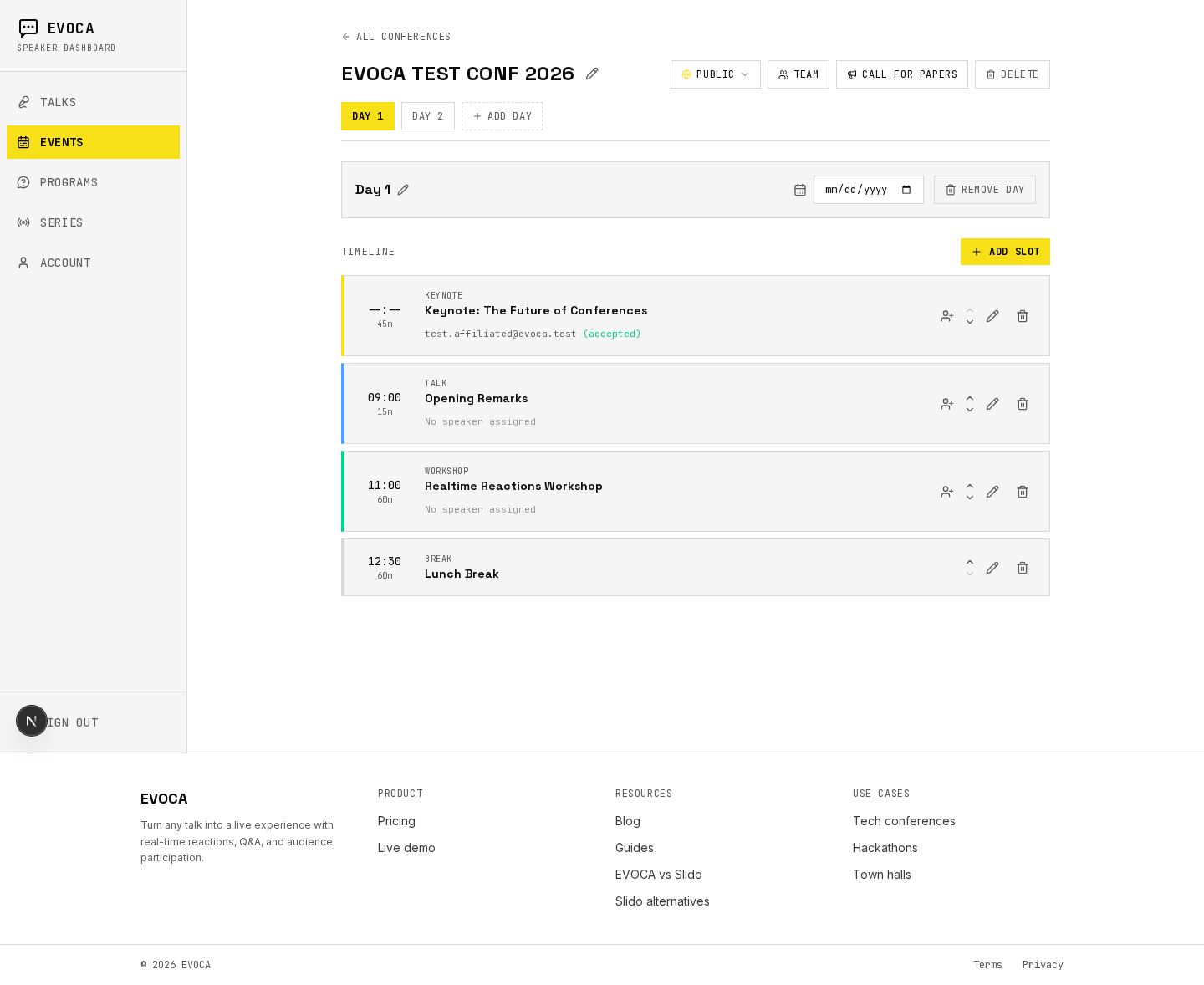
Conference schedule / day timeline. 4.Add slots
On each day, click Add slot for keynotes, talks, breaks, and other slot types. Reorder slots so the public agenda matches the room.
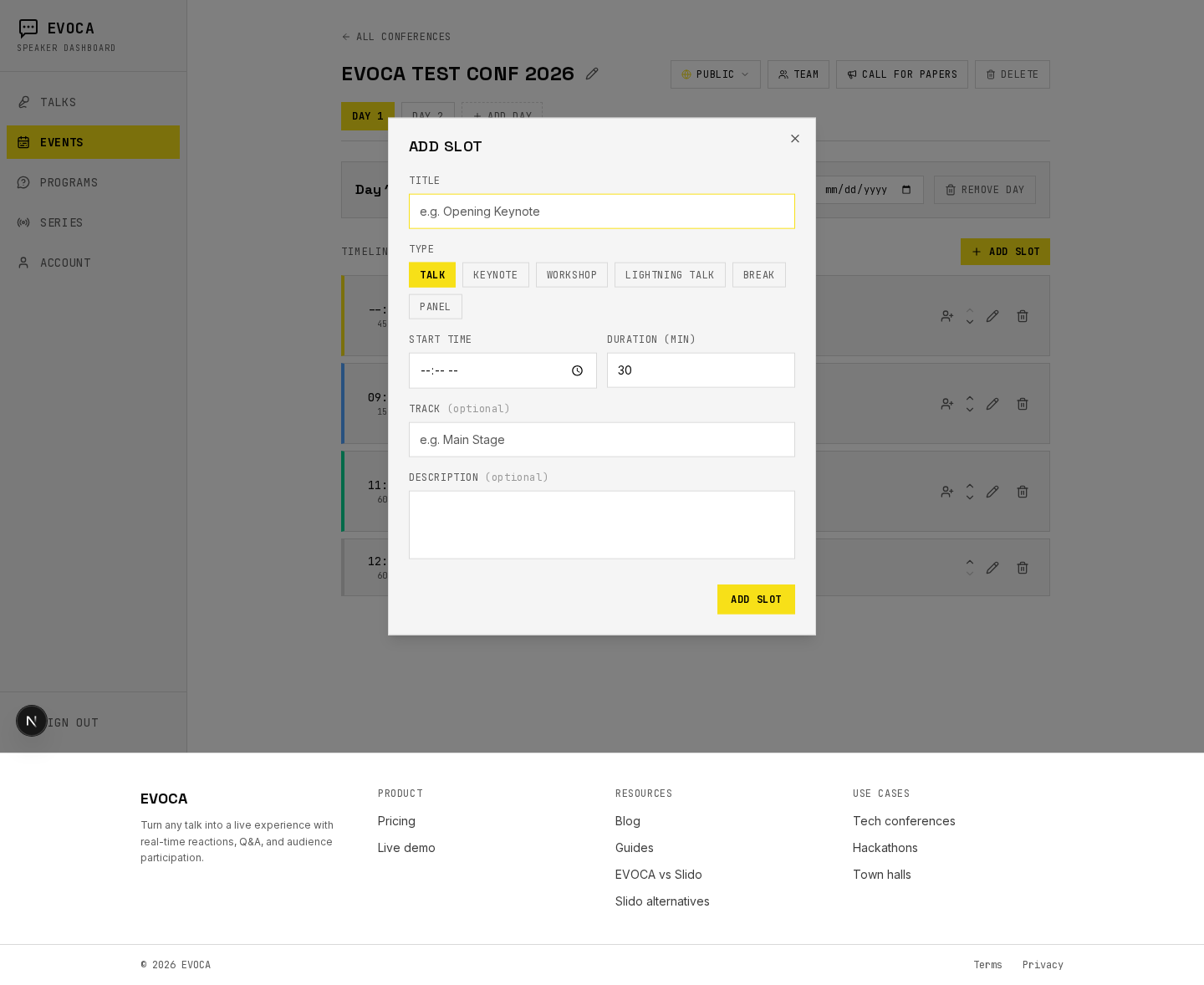
Add slot modal on the conference schedule. 5.Assign speakers
On slots that accept a speaker, use Assign speaker (invite by email). Speakers show those talks under Your Talks once they accept and set up.
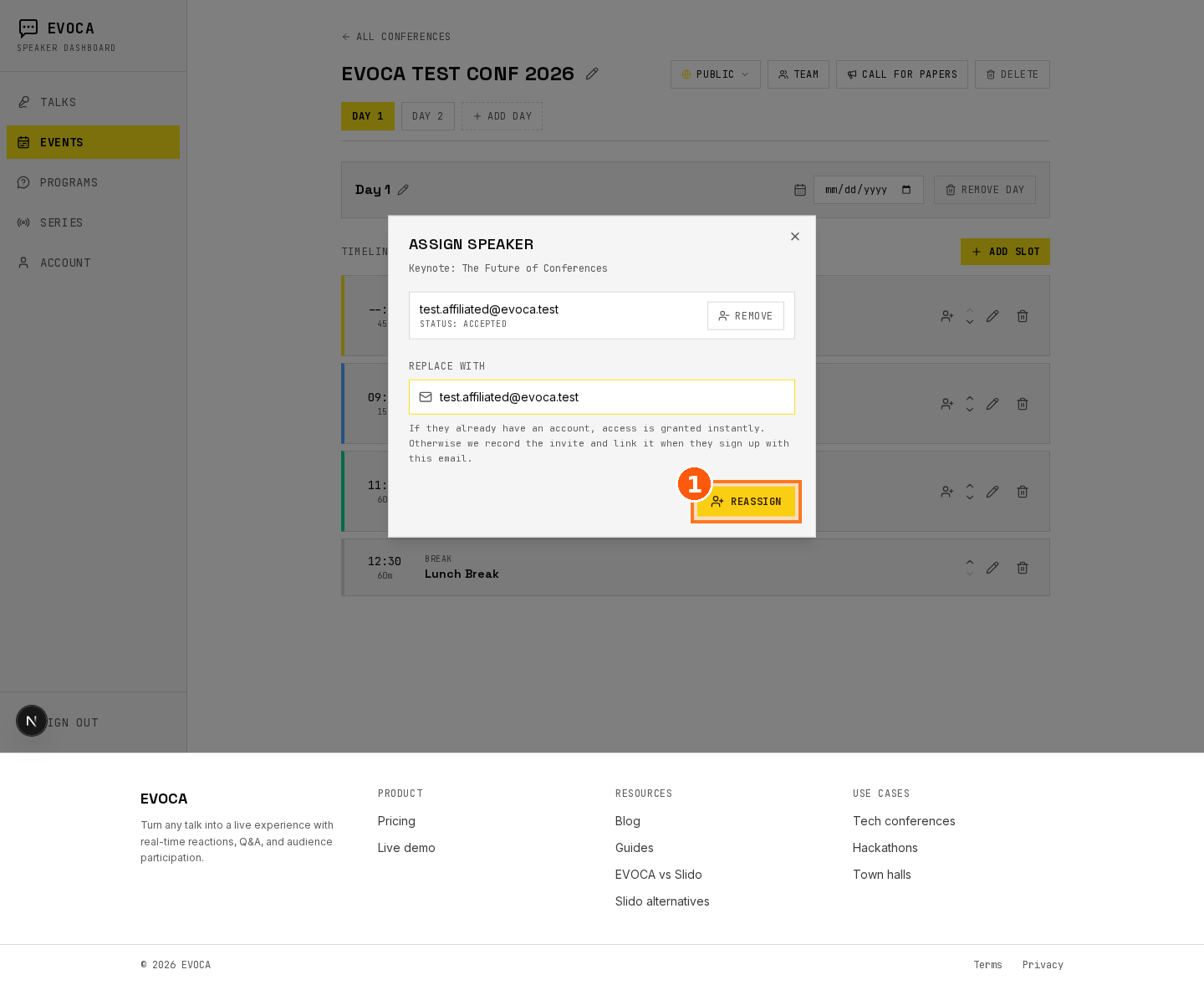
Assign speaker modal for a schedule slot. 6.Configure the call for papers (optional)
If you accept submissions, open CFP settings and configure how speakers apply before review.
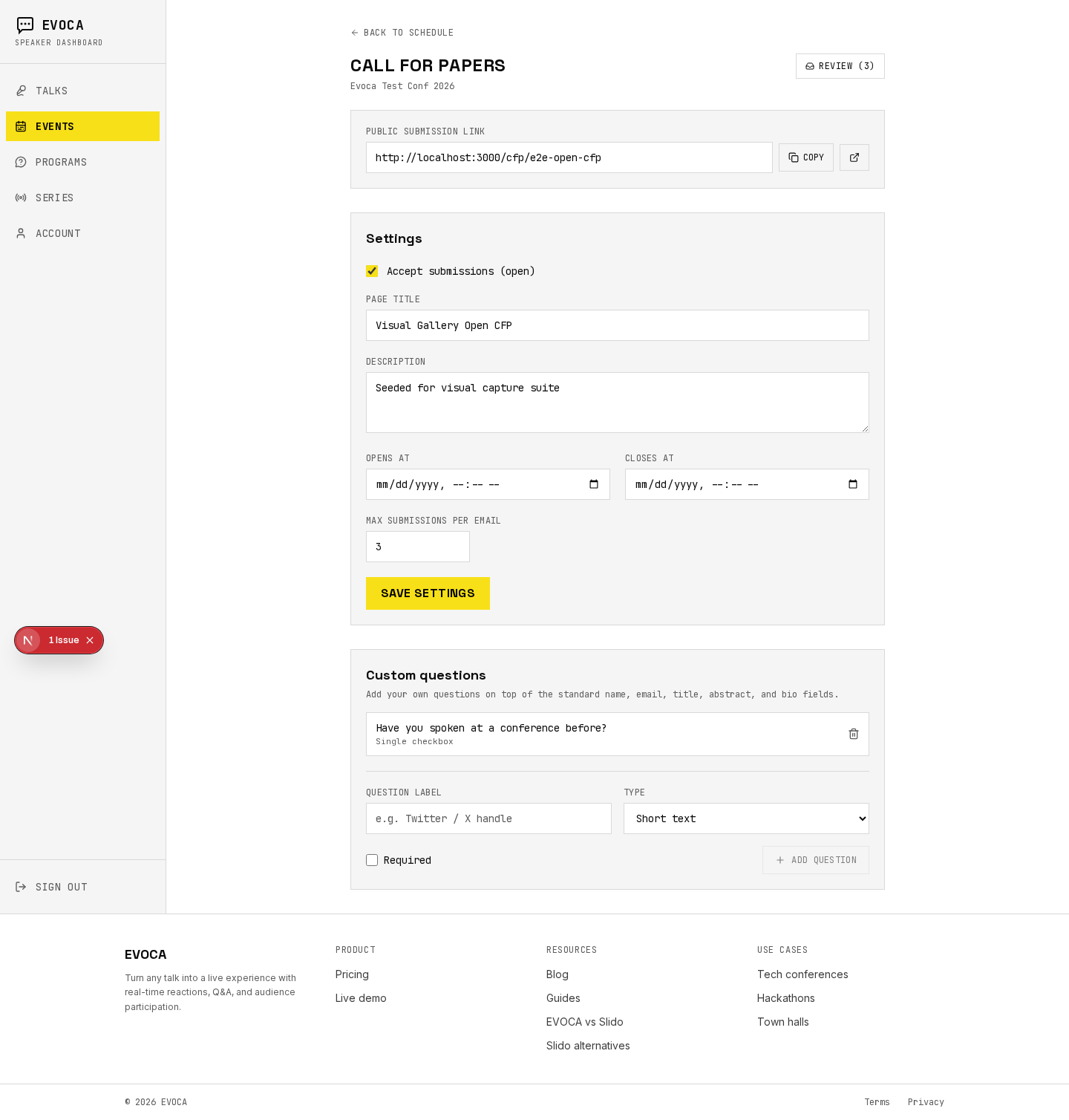
Call for papers settings. 7.Review CFP submissions
Use the CFP review board to accept or reject submissions and promote accepted talks into the schedule as needed.
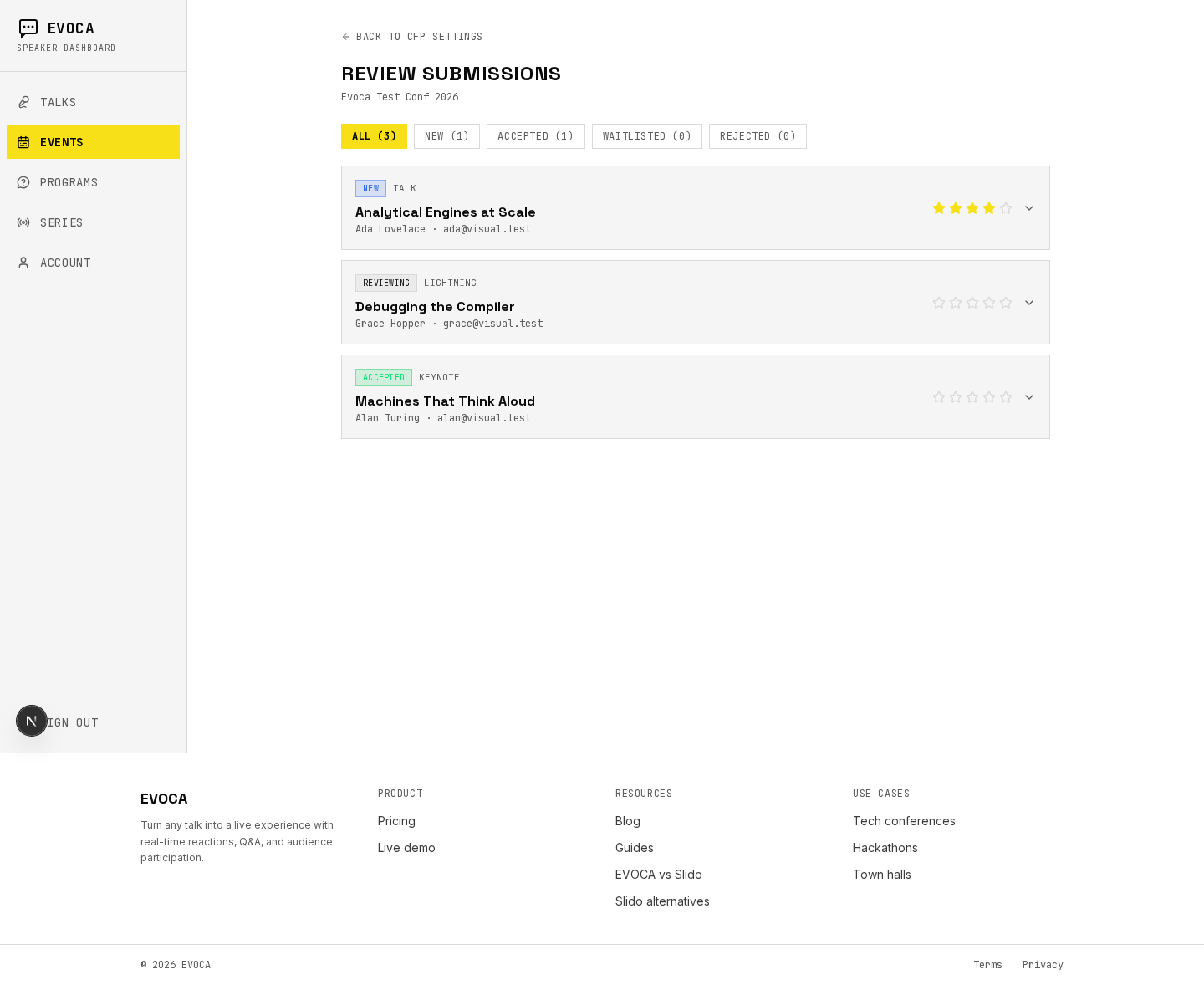
CFP review with submissions to accept/reject. 8.Publish the public page
Use Publish in the publish bar when the schedule is ready. Attendees browse the public /c/… page. Use Unpublish if you need to take it down.
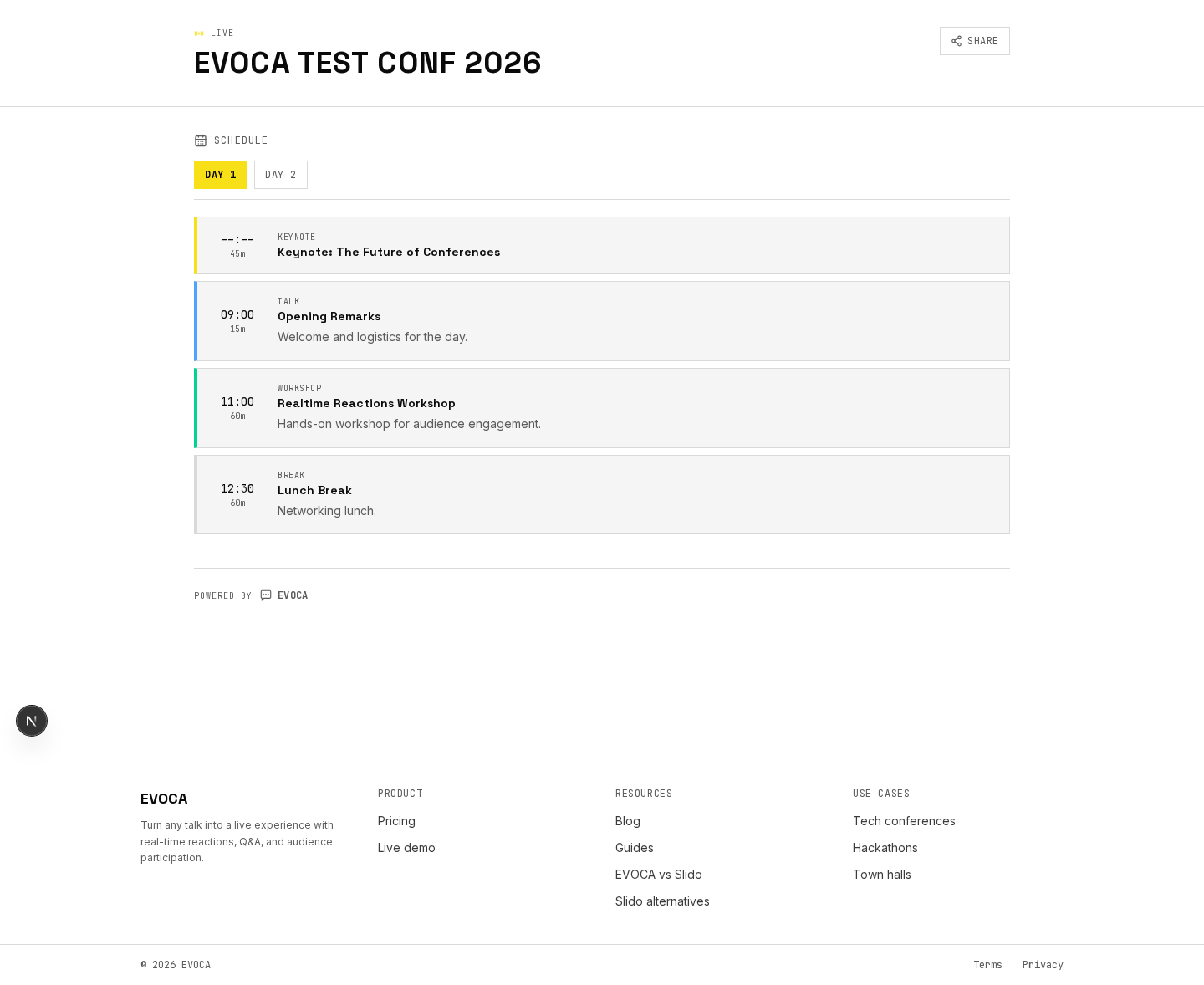
Public conference page attendees see. 9.Share the conference
Open the share menu to copy the link (and related share actions) for speakers and attendees.
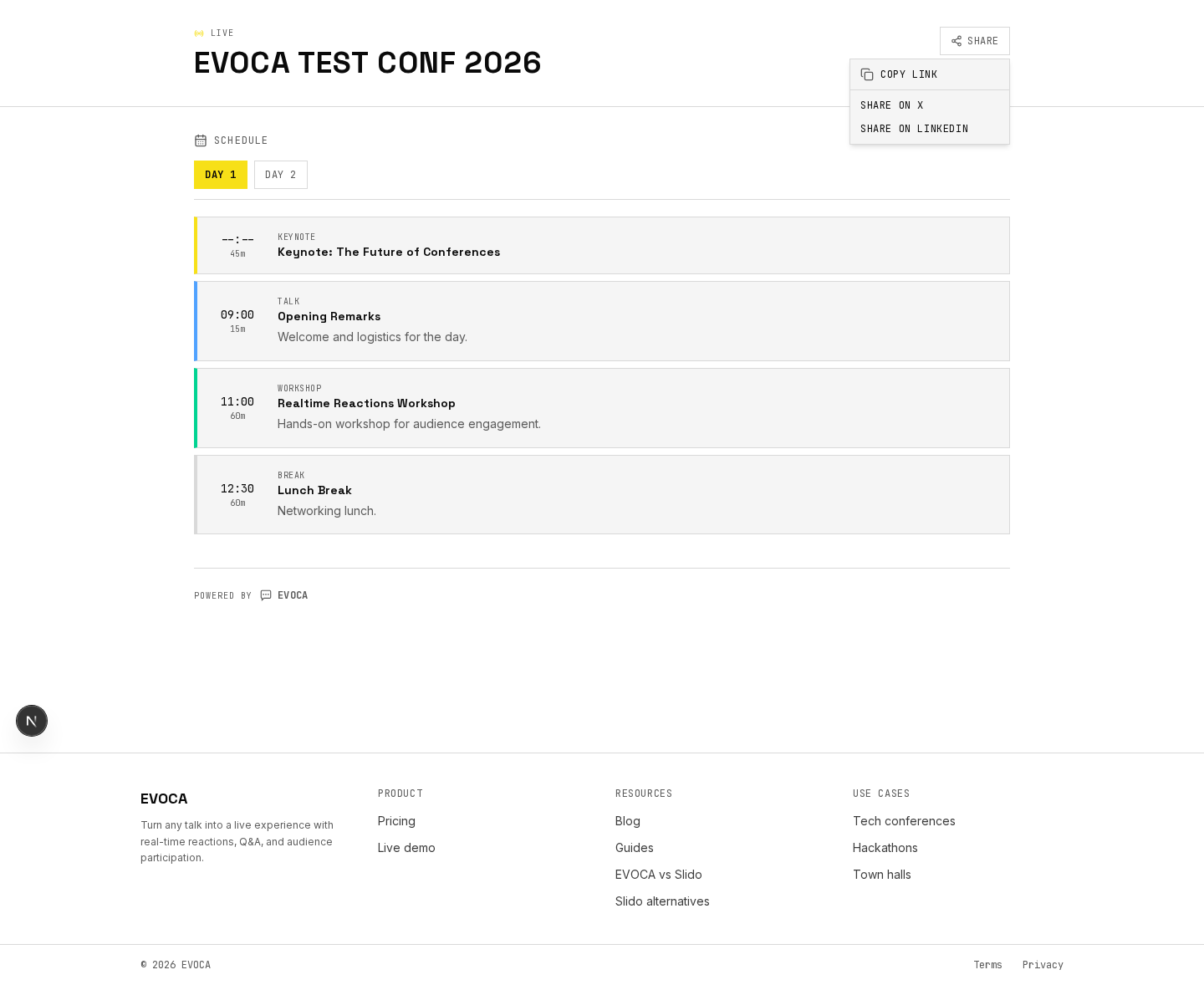
Share conference page menu (copy link, etc.). 10.Present a session
When a room starts, the speaker (or organizer with access) opens the talk and goes live with Present / Start session. Use the present view on stage; see run a talk for Phone remote and slide control.
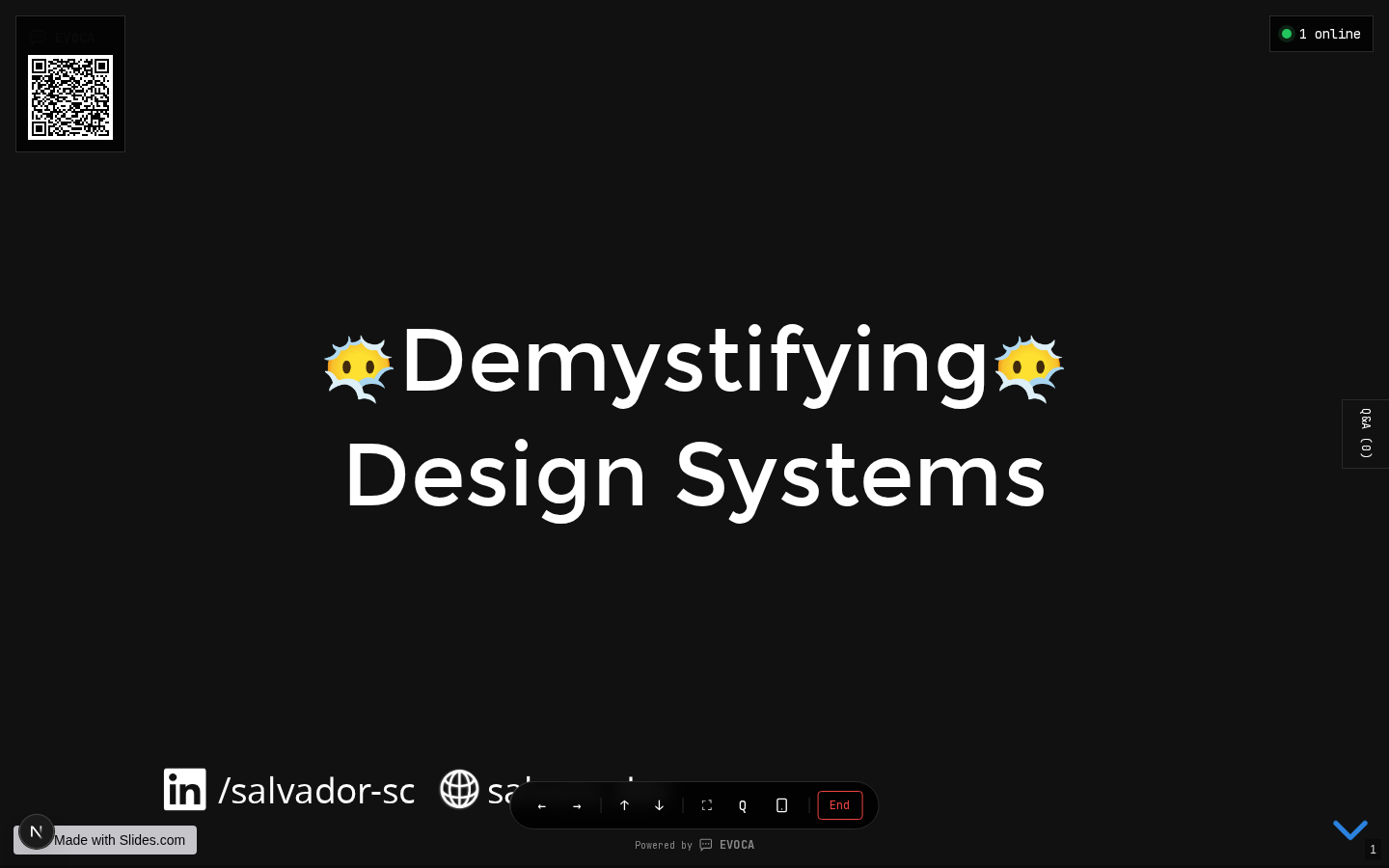
Present slides during a conference talk. 11.Run the live wall
From Q&A, use Open Wall on the projector and Open Presenter on stage. End the session when the talk finishes so the next slot can start clean.
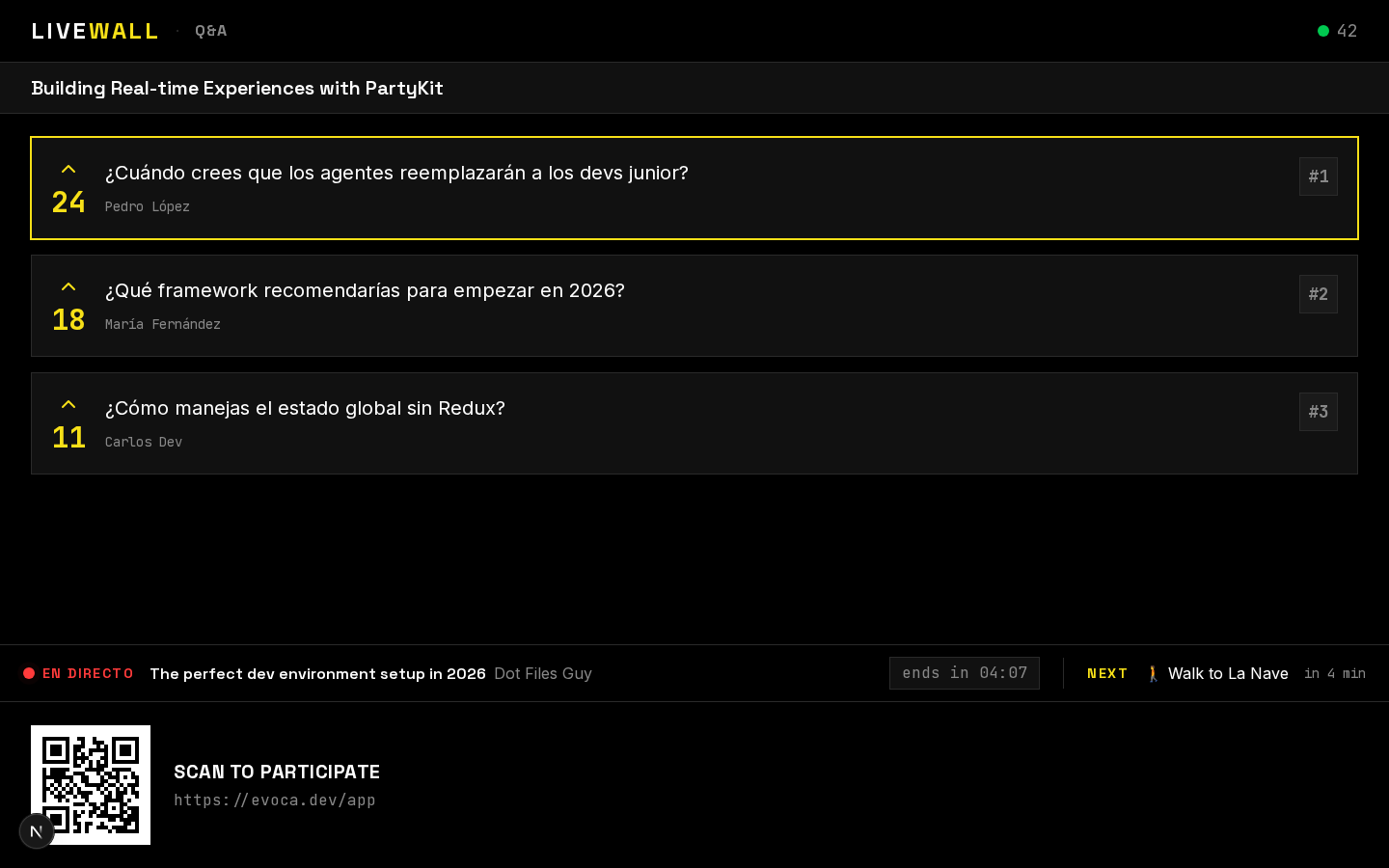
Live Q&A wall during a conference session.
Smaller single-track meetups can use Series or personal Talks instead of a full Conference — pick Conferences when you need days, slots, and a published multi-talk schedule.
Frequently asked questions
Run your conference on EVOCA
Free for events up to 100 attendees. Scale up with a one-time event or Growth/Scale when you need organizer tools.